The official name is GPT Image 2.
GPT Image 2 is OpenAI's current image generation and editing model. Its API model ID is gpt-image-2. OpenAI recommends it as the default for new image workflows, including photorealistic generation, compositing, identity-sensitive edits, and images with real text.
The model can follow a detailed brief, but detail works best when it is organized. Separate the scene, composition, treatment, and constraints so that you can see which instruction caused a result.
Write for controllability. A prompt is successful when you can change one instruction and predict which part of the image should move.
Translate the reference into four decisions.
For a new generation based on an image, first identify what the reference contributes. Then write the intended result using content, composition, style, and constraints.
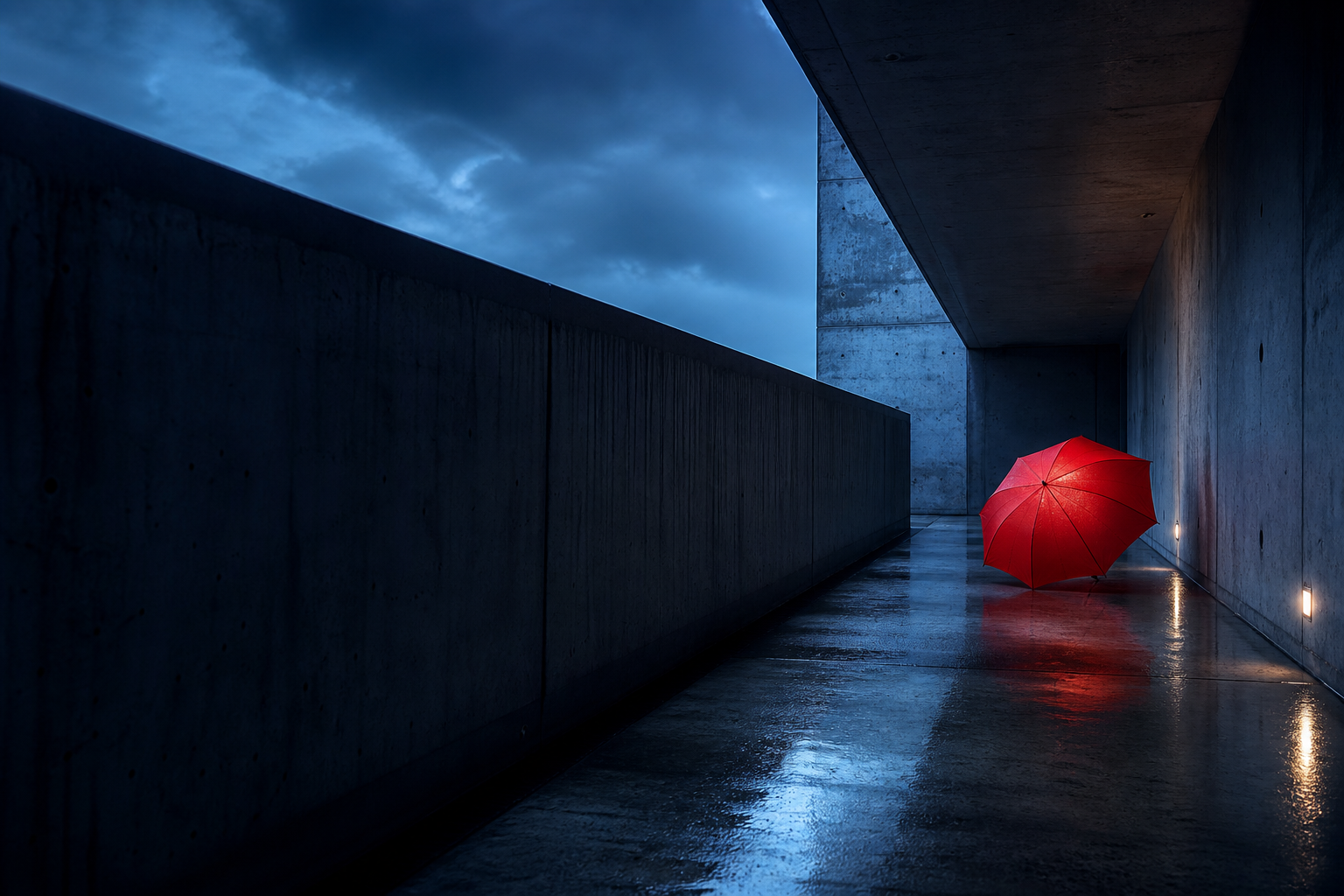
An empty brutalist corridor after rain with one closed red umbrella against the wall.
Wide landscape frame, low eye level, deep central vanishing point, umbrella placed in the left third.
Photorealistic architectural photography, cool blue-hour light, wet reflective concrete, restrained cinematic color.
One umbrella only, no people, no signs, no extra objects, no watermark, and no added text.
Create a photorealistic architectural photograph based on the attached reference. Show an empty brutalist concrete corridor after rain with one closed vermilion umbrella leaning against the left wall. Use a wide landscape frame from a low eye level, with a strong central vanishing point and quiet negative space. Preserve the cool blue-hour atmosphere, wet floor reflections, realistic concrete texture, soft haze at the far opening, and restrained cinematic color. Keep the scene minimal: one umbrella only, no people, signs, logos, watermark, or added text.
This prompt does not ask for every visible detail. It names the details that make the reference recognizable and protects the minimal composition from unwanted additions.
For edits, split change from preserve.
OpenAI's official prompting guide recommends the pattern “change only X” and “keep everything else the same.” The model can make a focused edit, but the important invariants should be stated again on each iteration to reduce drift.
Turn this into a winter scene with a yellow umbrella.
Change only the weather and umbrella color: add a thin layer of fresh snow along the floor edges and change the umbrella fabric to warm yellow. Preserve the exact corridor geometry, camera angle, crop, umbrella position and shape, concrete surfaces, and central vanishing point. Keep all other objects unchanged.
When the edit must look real, describe integration. Ask the model to match light direction, shadows, reflections, scale, perspective, material response, and color temperature. When identity or a product design matters, name the protected attributes individually.
Use exact language for text.
If the output includes words, place the required copy in quotation marks and ask for it verbatim. Add typography, color, size, placement, contrast, and the instruction that the text should appear once. Text is part of the image specification, not a casual note at the end.
Add the exact text "STAY CURIOUS" once on the far concrete wall. Use uppercase condensed sans-serif lettering, small size, off-white color, clean kerning, and high legibility. Keep the text aligned to the wall perspective. Do not add any other words or symbols.
Label every input by number and role.
When several images are attached, identify them as Image 1, Image 2, and so on. Describe each image in a few words and explain how the inputs should interact. The model should not have to infer whether a reference controls identity, object design, layout, or style.
Image 1: base scene
Keep the corridor geometry, camera position, and blue-hour lighting from Image 1.
Image 2: object
Use the exact bicycle frame, basket, and cobalt paint shown in Image 2.
Image 3: treatment
Apply only the subtle film grain and muted contrast from Image 3.
Composite
Place the bicycle against the left wall and match the scale, perspective, shadow, and wet-floor reflection to Image 1.
After the first result, iterate with small requests such as “make the far light warmer” or “restore the original wall texture.” Repeat any critical preserve list when you make the next change.
A complete GPT Image 2 workflow
A production-ready prompt starts by deciding what the reference image is allowed to control. The source may be a base canvas, an identity reference, a composition guide, a style sample, or one component in a composite. Once that role is clear, the prompt can be written as a sequence of decisions.
- Define the deliverable. State whether the output is a photograph, illustration, product mockup, poster, interface, diagram, or another concrete asset. The intended use affects layout, detail, and text requirements.
- Describe the content. Name the main subject, action, environment, supporting objects, and important relationships. Lead with the visual fact that must be recognizable at a glance.
- Lock the composition. Specify crop, viewpoint, subject scale, placement, negative space, depth, and any layout hierarchy. For a reference-led edit, say which of these must remain unchanged.
- Define the treatment. Add the medium, rendering realism, light source, palette, materials, texture, and finish. Translate style labels into visible behavior.
- Separate changes and invariants. Identify the editable element, then list the identity, geometry, layout, branding, lighting, or surrounding details that are protected.
- Add production constraints. Quote exact text, set orientation and background behavior, limit extra objects, and state any requirements that determine whether the result is usable.
- Iterate in small steps. Correct the largest failure first. A composition correction should come before micro-texture, and identity preservation should come before decorative styling.
Write the acceptance criteria into the prompt. If the result is unusable when a label changes, a face drifts, or a product shape is redesigned, say so explicitly before generation.
Separate prompt language from output controls.
The prompt describes what the image should contain and how it should look. Model settings control how the image is rendered and delivered. Keeping those responsibilities separate makes a workflow easier to test.
Prompt content
Subject, action, environment, relationships, exact copy, composition, lighting, palette, materials, texture, style, and preservation rules.
Canvas size
Choose a size that matches the intended placement. Also describe the orientation and layout so content uses that canvas deliberately.
Quality level
GPT Image 2 supports low, medium, and high quality. Use faster settings for exploration and higher settings when small text or fine material detail matters.
Background behavior
State whether the scene needs an opaque environment, a plain studio background, or downstream background removal. Do not leave product context ambiguous.
For example, “wide landscape poster with the product in the right third and clear copy space on the left” belongs in the prompt. The exact pixel dimensions and quality level belong in the image request settings. Both layers should describe the same intended asset.
GPT Image 2 prompt templates by task
Use these as structured starting points rather than fixed formulas. Keep only the fields that affect the output and replace broad adjectives with visible evidence.
Close reference reconstruction
Create a close reconstruction of Image 1. Preserve [subject identity, layout, viewpoint, palette, lighting, materials]. Render it as [medium and finish]. Keep [critical invariants] unchanged and do not add [specific unwanted elements].
Identity-sensitive edit
Change only [garment, background, expression, or object]. Preserve the person's exact face, proportions, skin tone, hair, pose, and expression. Integrate the edit with matching light, shadow, scale, and occlusion.
Product compositing
Use the exact product from Image 1 and place it in the environment from Image 2. Preserve product geometry, colors, label copy, and material finish. Match scene perspective, contact shadow, reflections, and color temperature.
Style transfer
Keep the content and composition of Image 1. Apply only the visual treatment from Image 2: [palette, texture, edge quality, lighting, medium]. Do not import objects or layout from the style reference.
Marketing image with exact text
Create [asset type] featuring [subject]. Render the exact copy “[text]” once, verbatim. Specify type style, size, color, placement, contrast, and copy space. Do not add other words, logos, or watermarks.
Common GPT Image 2 prompt mistakes
Giving every detail equal importance
A prompt becomes harder to control when the subject, background props, mood words, and minor textures all receive the same emphasis. Lead with the deliverable and the dominant visual decision, then move toward supporting detail.
Protecting identity with one vague phrase
“Keep the person the same” may not protect face shape, pose, expression, hairstyle, body proportions, and skin tone equally. Name the attributes that cannot change and limit the editable region.
Mixing reference roles
If Image 1 provides the product and Image 2 provides the style, say that explicitly. Otherwise the model may copy the style image's composition or redesign the product to match its content.
Leaving exact copy outside the specification
Text needs the same precision as a product or face. Quote it, specify that it must appear verbatim and once, then define placement, typography, perspective, and contrast.
Rewriting the entire prompt after a small failure
A full rewrite can move parts that were already correct. Request one change, repeat the relevant invariants, and preserve the established image unless the concept itself needs to change.
Review it like a production specification.
- Does the prompt say what job the reference image performs?
- Are content, composition, style, and constraints easy to distinguish?
- For an edit, is “change only” followed by a precise target?
- Does the preserve list protect identity, geometry, layout, or branding?
- Does every attached image have an index and a single clear role?
- Is literal text quoted and described with placement and typography?
- Can follow-up requests change one thing without rewriting the whole brief?
GPT Image 2 prompt FAQ
What is the official name of OpenAI's current image model?
The official name is GPT Image 2 and its API model ID is gpt-image-2. GPT Image 2 is the recommended default for new OpenAI image generation and editing workflows.
What should a GPT Image 2 prompt include?
A strong prompt separates content, composition, style, and constraints. For edits, it also identifies what should change and what must remain invariant. Add exact text and output requirements when they determine usability.
How do I preserve a face or product in a GPT Image 2 edit?
Name the protected attributes individually, limit the editable region, and explain how the new element integrates with the existing light and geometry. Repeat the preservation list during later iterations if important details begin to drift.
How should I label multiple images for GPT Image 2?
Refer to each input by index and description, give it a role, and explain how the inputs interact. State which source is authoritative for identity, object design, composition, environment, and style.
How do I get exact text in a GPT Image 2 output?
Put the required copy in quotation marks, request it verbatim, specify typography and placement, and state that no additional words or characters should appear. Higher quality settings are more appropriate when small or dense text matters.